If you changed your email password but someone still seems to be in the account, they may be riding an active session, using auto-forwarding, reading mail through a connected app, acting as a delegate, or using recovery methods they added—so change the password and then check everything else.
When a business email is compromised, setting a new password is step one. It’s not the finish line. During the break-in, the intruder could have turned on mail forwarding, approved a third‑party app, added new sign-in or recovery options, or granted another user access. They might also still be signed in on a device or browser.
Email needs special care because it unlocks so much else—password resets and alerts for accounting tools, cloud storage, social media, and other systems land there. If someone can still read that inbox, they may be able to reach those services too. Current recovery advice from Microsoft, Google, and the UK National Cyber Security Centre includes checks beyond “change the password.”
A New Password Doesn’t Close Every Door
Email platforms keep you signed in with a token or cookie so you don’t type your password every time. That session can continue until it times out or you force it to end. So if the attacker logged in before you changed the password, they might still be connected for a while, depending on the provider and device.
Google notes that a password change logs you out in most places, but there are exceptions, including some devices and third‑party apps. Google Workspace admins can also take separate steps to suspend an account and clear its sign‑in cookies. For Microsoft 365 business accounts, the guidance is similar: disable the account during the investigation and invalidate any live sessions as an extra step (Microsoft).
Also remember: a password change does not touch mailbox settings. Forwarding, delegates, and recovery details added during the breach remain until you remove them.
Changed Email Password, Still Hacked? What to Check First
Lingering sign-ins are often the first thing to tackle.
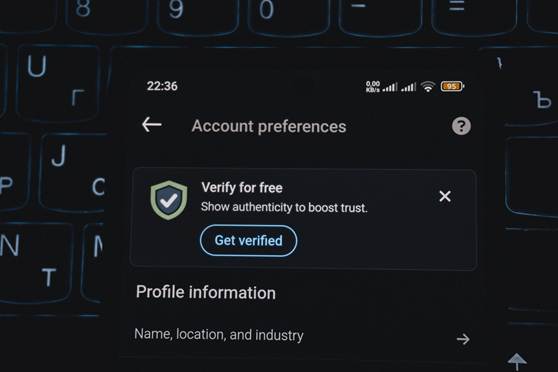
Photo: https://www.pexels.com/photo/smartphone-screen-showing-account-verification-alert-33440144/
If the intruder used a browser or mail app, that device may still hold a valid token. Malware on a computer can also copy a session cookie and send it elsewhere. With a stolen cookie, someone may get in without ever typing the new password.
Use your provider’s tools to force a sign‑out everywhere and invalidate tokens. The wording varies—look for options like ending all sessions, clearing sign‑in cookies, or logging out on all devices. If the employee’s computer might be infected, begin recovery from a clean machine and have the original device checked before anyone signs in again.
Forwarding and Filters That Leak Your Mail
After you cut off active sessions, review mailbox rules and settings.
Attackers often set a rule that forwards every new message to their address. Some go further and forward only messages with terms like “invoice,” “payment,” “bank,” or “password reset.” That selective approach is hard to spot because normal mail still appears as usual—only the juicy items get copied out. Rules can also hide signs of fraud by moving warnings or customer replies into folders no one checks.
Both providers advise reviewing these areas after a breach—see Microsoft and Google. In Microsoft 365, do this from the admin portal, not just inside Outlook, and review all rules, including any that don’t show up in the user’s view.
App Connections That Can Read Mail Without Your Password
Photo credit: https://www.pexels.com/photo/creative-photo-of-a-lock-key-16564254/
Many businesses link email to calendars, CRMs, mobile mail apps, document tools, and browser add‑ons. These links often use an approval flow that grants the app limited access to your account without sharing your password (called OAuth). When a user clicks approve, the app gets a token to read only the parts it was granted.
Criminals abuse this by presenting a fake or misleading consent screen. As Microsoft explains, a bad consent grant can open the door to email, files, contacts, and even forwarding rules.
Some app connections stop working after a password reset; others keep working until you remove them. Audit every connected app and remove any you don’t recognize or no longer need. Don’t trust the app’s name or logo—verify who published it and the exact permissions it requested.
Delegates and Shared Access
Business email often allows one person to work in another person’s mailbox. For example, an assistant might access an executive’s mail, or a team may share a mailbox. This is called delegation. Delegates sign in with their own accounts, so changing the mailbox owner’s password won’t remove a delegate.
In Exchange Online, you can grant Full Access, Send As, or Send on Behalf rights (details here). Gmail also supports delegated access. Review every person and group listed, confirm why they need it, and remove anything you can’t explain. Pay close attention to sending rights—someone with “Send As” can send mail that looks like it came straight from the account.
Review Recovery and Sign‑In Options
Attackers may add their own phone number, backup email, authenticator app, passkey, or security key while they’re in the account. Those entries can help them slip back in later or approve a login without the new password.
Microsoft’s guidance tells admins to review registered two‑step login devices and remove anything suspicious (source). Google recommends checking backup options, recent security events, devices, and how you sign in (source). Go through the list with the account owner and delete anything neither of you recognize.
Step‑by‑Step: Lock Down a Compromised Mailbox
Turn the Account Off While You Investigate
The admin should temporarily block sign‑ins and also kill any active sessions or tokens. That short pause prevents more damage while you clean up.
Set a Strong, Unique Password
Pick a password the employee has never used on any other account. If they reused the old one elsewhere, change those too. Don’t send the new password to the affected inbox. Share it by phone, a trusted password manager, or another safe method. Some older apps rely on separate “app passwords.” Microsoft notes these may keep working after a standard reset, so remove or replace them if you find any.
Audit Mailbox and Account Settings
Review forwarding addresses, inbox rules, filters, blocked senders, delegates, sending rights, signatures, automatic replies, and any connected applications. Then check devices on the account, phone numbers, backup email addresses, authenticator apps, passkeys, and security keys. Also look at POP and IMAP. Some firms still use them for approved apps, so confirm what’s required before switching them off.
Figure Out What Happened
After you’ve cut off access, determine what the intruder did. Check Sent, Deleted, Drafts, Junk, and Archive. Watch for messages the employee didn’t write, missed replies, password resets, and any change to payment details.
Admins should review sign‑in logs, audit trails, email traces, and alerts. Start before the first warning you noticed; the initial breach may be earlier. A strange location alone doesn’t prove misuse—VPNs, mobile networks, and ISPs can skew that data. Look at device, IP, time, app, and nearby activity together.
Notify Anyone Who Might Have Received Scam Messages
If bad emails went out, contact recipients using a known-good channel. Explain which messages weren’t real and whether they should change a password, remove a file, or ignore a payment request. Pay special attention to anything involving wire details, invoices, payroll, gift cards, or password changes. If money may have gone to the wrong place, call the bank or payment provider right away using a number from its website or your records—not from the email thread.
Re‑enable the Account Safely
Once unknown access, settings, and permissions are gone, return the account to the employee. Require two‑step login (multi‑factor authentication) before they sign in again. Where possible, use passkeys or physical security keys; they’re harder to trick with phishing than codes you type. Two‑step login stops many future break‑ins with stolen passwords, but it doesn’t undo forwarding rules, app permissions, delegates, or backup options already in place—those must be cleared during your review.
How to Lower the Risk Next Time
Ask your IT team to block automatic forwarding to outside addresses unless there’s a strong business need. Microsoft 365 and Google Workspace also let you limit which third‑party apps employees can connect. Require two‑step login for everyone—especially admins and staff who handle payments or sensitive data—and prefer passkeys or hardware security keys where supported. Train employees to report anything odd right away: unexpected two‑step prompts, unfamiliar login alerts, mailbox changes, or messages sent from their account they don’t recognize. Early reports help stop damage fast for offices around Panama City.
Frequently Asked Questions
Will a password change sign me out on every device?
Not always. Some providers log you out of most places after a reset, but others require you to separately end active sessions and revoke tokens. Follow the breach‑response steps for your specific service.
Could someone still get my mail after I change the password?
Yes. Forwarding rules or filters may continue to copy messages to another address. Review all forwarding, rules, and filters and remove anything you didn’t set up.
Can an app read my email without knowing my new password?
Yes. Apps can be granted access through an approval flow (OAuth) and then use tokens instead of your password. Remove any connected app you don’t recognize or no longer use.
Should we delete an account that was compromised?
Usually no. It’s better to disable it while you investigate. Deleting it too soon can destroy evidence your IT team needs.
Is two‑step login enough by itself?
No. It helps block new logins with stolen passwords, but it won’t remove existing mail rules, app consents, delegates, backup options, or live sessions. Those must be checked and fixed.
Sources and Further Reading
- Microsoft: Respond to a compromised email account in Microsoft 365
- Microsoft: App consent grant investigation
- Google Workspace: Identify and secure compromised accounts
- Google: Gmail security tips
- UK National Cyber Security Centre: Hacked accounts
- Australian Cyber Security Centre: Review your email account security
If you’re dealing with a mailbox issue or want a second set of eyes on your settings, get in touch with Flux Labs. We help small and mid‑sized teams around Panama City lock things down.
—