Fake Windows update ransomware is on the rise. A newer strain called Big Head pretends to be a Windows update, then locks your files. Learn how it works and the simple steps to keep your business safe.
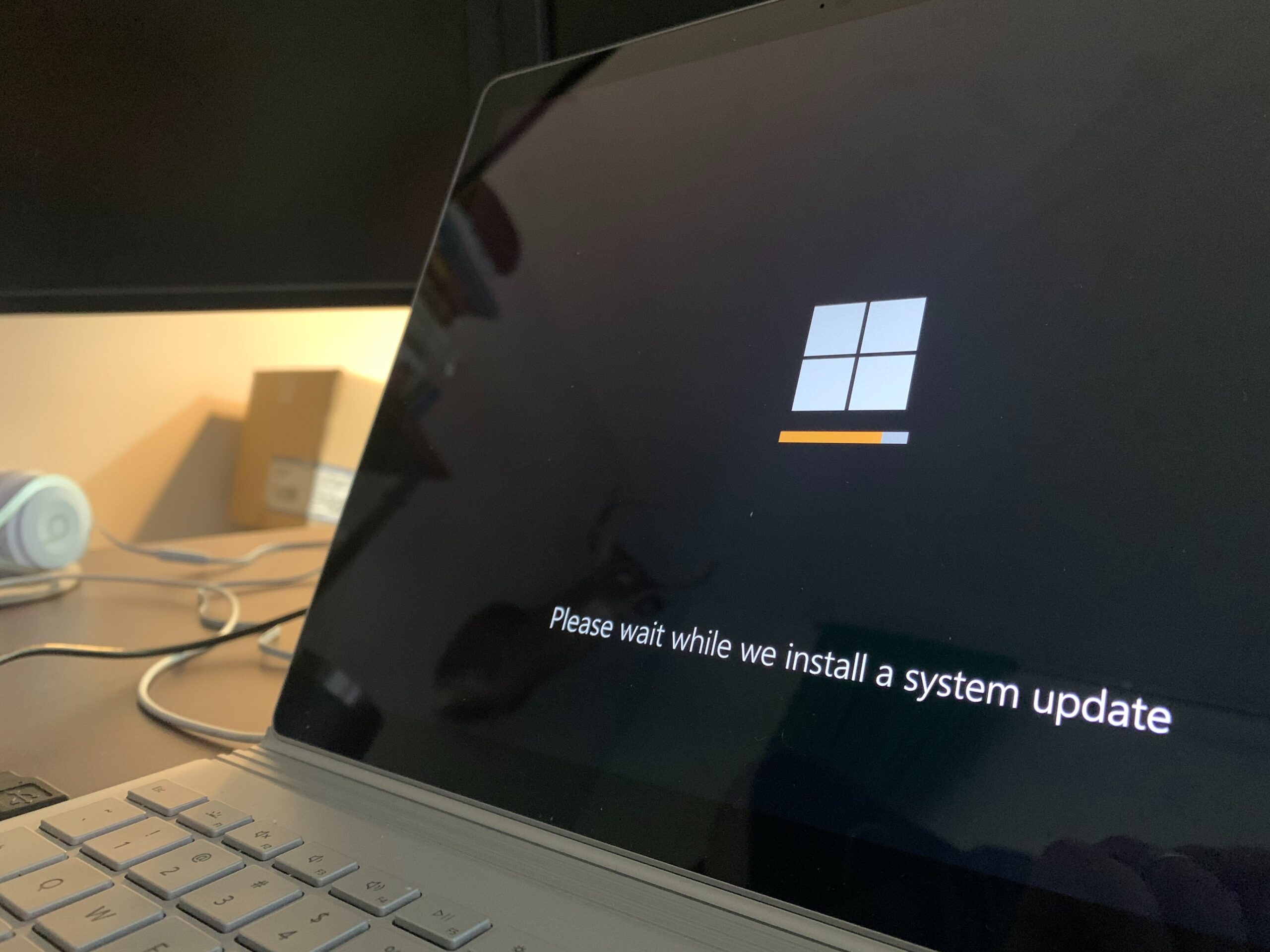
Picture this: you’re working away and a window pops up saying it’s time to update Windows. You click, thinking you’re doing the right thing. Instead, the “update” installs ransomware that scrambles your files and brings work to a halt. That’s the trick behind the Big Head ransomware family.
Ransomware blocks access to your data until you pay. If you don’t have a clean backup, you’re stuck choosing between paying a criminal or calling in help to rebuild. Big Head adds a nasty twist by dressing up as a real Windows update, even using a forged Microsoft digital signature to look more legit.
How the Big Head “Update” Scam Works
Attackers craft a fake Windows update notice. It can look like a pop-up or system notification. The goal is to make you think the update is routine and safe. The forged Microsoft signature adds false credibility, so it’s harder to spot what’s wrong.
Once you click and run it, the malware installs, encrypts your files, and shows a ransom note asking for payment in exchange for a decryption key. At that point, your PC is basically unusable until you recover.
By 2031, it’s expected a ransomware attack will occur every 2 seconds.
Protect Your Business From Fake Windows Update Ransomware
Criminals are getting smarter—and they’re experimenting with AI tools just like everyone else. A few steady habits go a long way to protect your office in Panama City and across Bay County.
Update the Right Way
Keeping Windows and other software current is essential. But don’t trust surprise pop-ups. Use Windows Update in Settings or let a managed IT provider handle automated updates. That makes random prompts easier to spot as fakes.
Confirm Updates Before You Install
Real Windows updates come through Windows Update, from Microsoft’s official site, or via your IT provider. Be careful with update notices sent by email, on web pages, or from unfamiliar tools.
Back Up Your Files Regularly
Make frequent backups to a secure cloud service or an external drive. If ransomware hits, backups let you restore data without paying a ransom.
Use Trusted Security Software
Install reputable antivirus and anti-malware tools on your computers and devices. They can help detect and block ransomware before it runs.
Teach Your Team What to Watch For
Show employees how to spot suspicious links and attachments. A few minutes of training can stop an attack before it starts.
Improve Email Filtering
Many attacks start with phishing. Use strong email security and be cautious with links or attachments, especially from unknown senders.
Turn On Firewall and Network Protections
Use your built-in firewall and network security tools to reduce the chances of unauthorized access.
Disable Auto-Run for USB Drives
Turn off automatic launch for external drives so malware can’t start on its own when a USB stick is plugged in.
Treat Pop-Ups With Caution
Be skeptical of any alert that pushes you to download or install software. Verify it’s real before you click.
Watch for Trouble Signs
Investigate quickly if your computer starts acting oddly. Warning signs include:
- Unexpected slowdowns
- Files changing on their own
- Missing files or folders
- The processor or fan racing when you’re idle
Have a Plan for Incidents
If ransomware strikes, know your first steps. Disconnect from the network, report it to your IT team or a cybersecurity pro, and avoid paying the ransom if you can.
Frequently Asked Questions
How can I tell if a Windows update prompt is real?
Open Settings and check Windows Update directly. Genuine updates install from there, from Microsoft’s site, or through your IT provider—not from random pop-ups or emails.
What should I do if I clicked a fake update?
Disconnect from the network right away and contact your IT support. The sooner you act, the better your chances of limiting damage and recovering from backups.
Will antivirus stop Big Head ransomware?
Good security software can help detect and block many ransomware threats. Keep it updated and combine it with backups and user training for layered protection.
Are backups enough to recover?
If you have recent, clean backups, you can usually restore files without paying. Store backups securely and test them regularly.
Need a Cybersecurity Audit?
Hidden risks don’t fix themselves. A cybersecurity audit can uncover gaps and strengthen your network before an attacker finds a way in—useful for offices around Panama City.
If you’d like help putting these protections in place, get in touch with Flux Labs.