Yes—two screens can make work go faster, as long as you set them up the right way. Use these dual monitor setup tips to improve comfort, reduce clicking around, and get more done without the eye and neck strain.
Why Two Screens Can Boost Productivity
Adding a second display gives you room to work—think email on one screen and your main app on the other. A study from Jon Peddie Research found productivity can rise by 42% with multiple monitors. If your first try felt awkward, it’s usually down to placement or settings, not the idea itself.
Practical Dual Monitor Setup Tips
Match Size and Resolution
Try to use displays that are the same size and resolution. When both screens show text and images at the same scale, your eyes don’t have to keep adjusting as you move between them.
Check Ports and Cables Before You Start
Look at the video ports on your computer and on each monitor so you have the right cables ready. Common options include HDMI, DisplayPort, and DVI. Using the best match for your hardware helps you get the full picture quality and refresh rate.
Arrange for Comfort
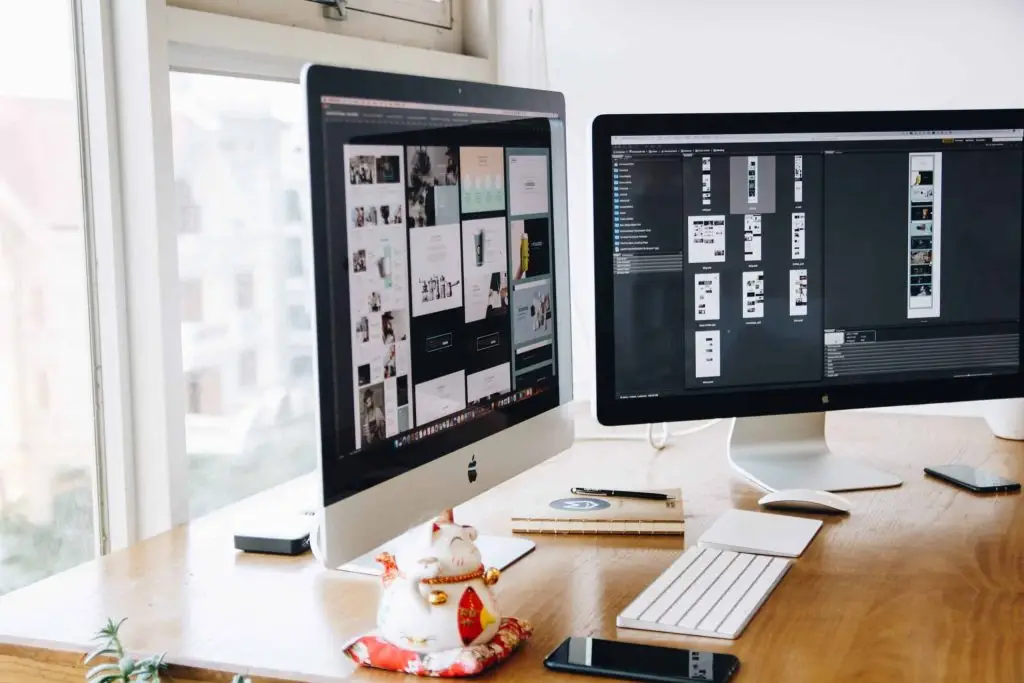
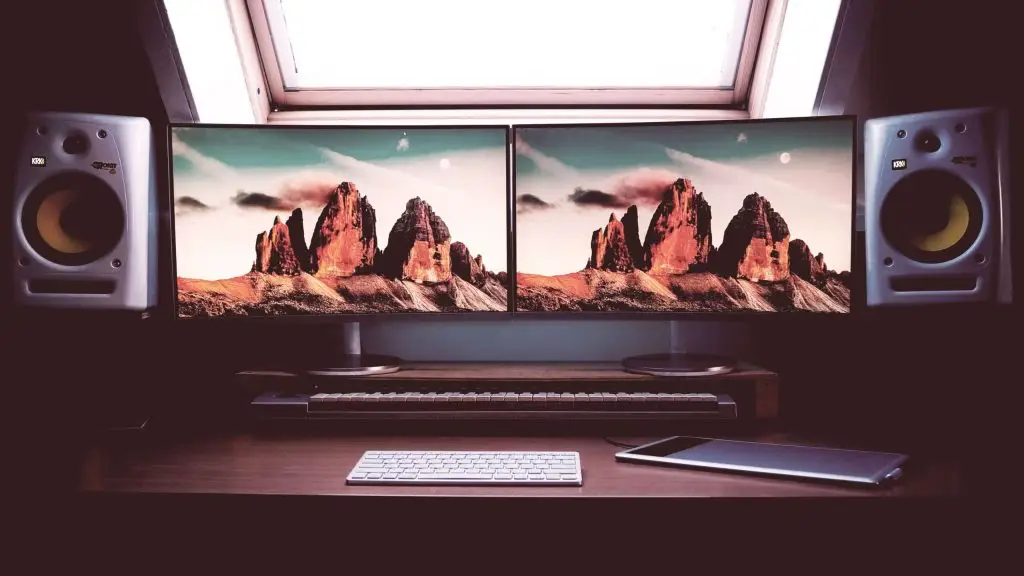
Line the monitors up side by side with their top edges level. Angle them slightly toward you, and keep them at a distance that feels easy to read. Good alignment reduces neck turning and eye strain during long days at the desk—whether you’re in Panama City, Lynn Haven, or working from home.
Use Extend, Not Duplicate
Skip screen mirroring. Choose the extended desktop so each monitor can show different content. For example, keep your main work on the center display and put reference material, chat, or email on the second.
Tidy Up the Taskbar
To avoid hunting for windows, show taskbar icons only on the screen where the app is open. On Windows:
- Right-click the taskbar and choose "Taskbar settings."
- Open "Taskbar behaviors."
- Under "When using multiple displays, show my taskbar apps on," select the taskbar where the window is open.
This keeps each screen focused on the work that’s there.
Use Quick Window Moves
Windows shortcuts make arranging apps fast. Press Windows key + Left/Right Arrow to snap a window to half the screen. It’s great for comparing two documents, writing while you research, or keeping a video meeting beside your notes.
Control the Cable Clutter
Two screens mean extra cords. Use adhesive clips, Velcro ties, or cable sleeves to bundle and route cables. A clean desk is easier to work at and makes upgrades simpler later.
Dial In Your Multitasking Flow
Set a “home” purpose for each screen. Designers often keep tools on one display and a canvas or previews on the other. Writers might draft on one side with research or email on the second. Find a layout that fits your daily routine and stick to it.
Gaming With Two Displays
If you game after hours, many titles support dual screens and can widen your field of view—especially racing and flight simulators. Adjust your graphics settings so performance stays smooth across both displays.
Don’t Skip Ergonomics
Keep the top of the screens near eye level. Place your keyboard and mouse so your forearms are level and your wrists are neutral. Small changes here prevent aches and keep you productive longer.
We Can Help With Setup
If your second monitor still feels more frustrating than helpful, we can assist with the hardware, cabling, and system settings so your team gets the benefit—without the trial and error.
Want a dual-screen desk that just works for your Bay County office? Let’s make it happen—get in touch.