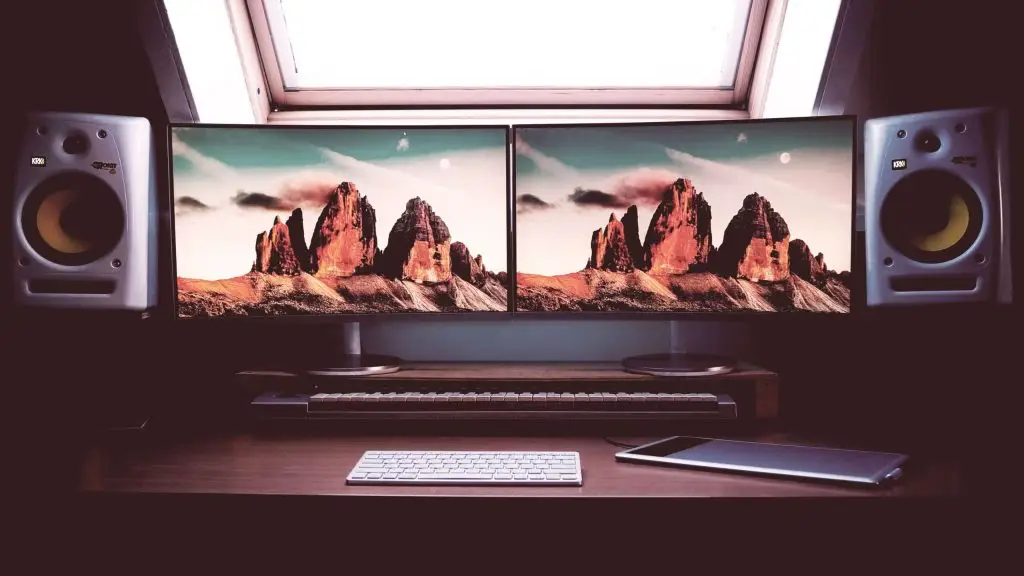
Yes—dual monitor productivity is real. Studies show the average worker can get more done with two screens, thanks to fewer window swaps, easier side‑by‑side work, and smoother video calls, all from a simple, low-cost upgrade.
When you see someone with two displays, it’s easy to assume they’re a designer or an engineer. In reality, the extra space helps almost anyone—especially folks who spend their day in spreadsheets, email, and documents around Panama City and Bay County.
Most of us make do with one screen. That means stacking windows, clicking around to find the right app, and losing time as we refocus. In fact, a study found 73% of surveyed businesses say employees lose over an hour per day on average just switching between apps.
What Studies Show About Dual Monitor Productivity
Jon Peddie Research tracked the impact of running two screens with a desktop or laptop over several years. The finding: across many roles, people improved output by an average of 42%.
From three studies over 15 years, the firm also saw strong adoption growth—between 2002 and 2017, dual‑screen use rose with a compound annual growth rate of 10%. As the researchers like to say, when you can see more, you can get more done.
Why a Second Screen Helps
Work Faster With Less Clicking
The biggest win is fewer interruptions. Keep email or chat open on one display while you focus on your main task on the other. No more constant alt‑tabbing or digging through layers of windows to find what you need.
A Bigger Desktop for Laptops
Laptops are great on the go, but small screens and low placement can slow you down and strain your posture. Plugging into a monitor gives you a larger, more comfortable workspace. You can mirror your laptop screen or extend it and use both displays at once.
Easy Side‑by‑Side Work
Comparing a proposal to the original brief, pulling numbers from notes into a slide deck, or checking a contract while sending an email—all are simpler when two full windows can sit open at the same time. No tedious resizing that breaks the moment you click a menu.
Smoother Video Calls and Screen Sharing
On meetings, choose one display to share and keep your notes, email, or chat open on the other. You can check details or message a teammate without broadcasting it to the whole call.
A Simple, Low‑Cost Upgrade
Monitors are relatively inexpensive—many run about $125 to $250 on average—and setup is straightforward. With an average 42% productivity boost reported in research, the payoff can be strong.
Getting Set Up Is Straightforward
Most computers detect a second display automatically. Open your display settings, choose extend or mirror, then drag each window to the screen where you want it. From there, it feels like one large desktop.
Frequently asked questions
Do I need special software to use two monitors?
No. Windows and macOS include built‑in support. Look for Display settings (Windows) or Displays (macOS) to arrange and set your preferences.
Can my laptop handle a second screen?
Most modern laptops can. You may use HDMI, DisplayPort, USB‑C, or a docking station depending on your model. Check for a compatible port or adapter.
Should I mirror or extend my display?
Mirror shows the same thing on both screens; extend gives you extra space. For productivity, extend is usually best so you can work in multiple apps at once.
What size monitor should I choose?
Pick a size and resolution that are comfortable to read at your desk and, if you already own one display, try to match it for a smoother side‑by‑side experience.
Want Help Improving Productivity?
Small upgrades can make a big difference. If you’d like advice on the right setup for your team’s day‑to‑day work around Panama City, get in touch.