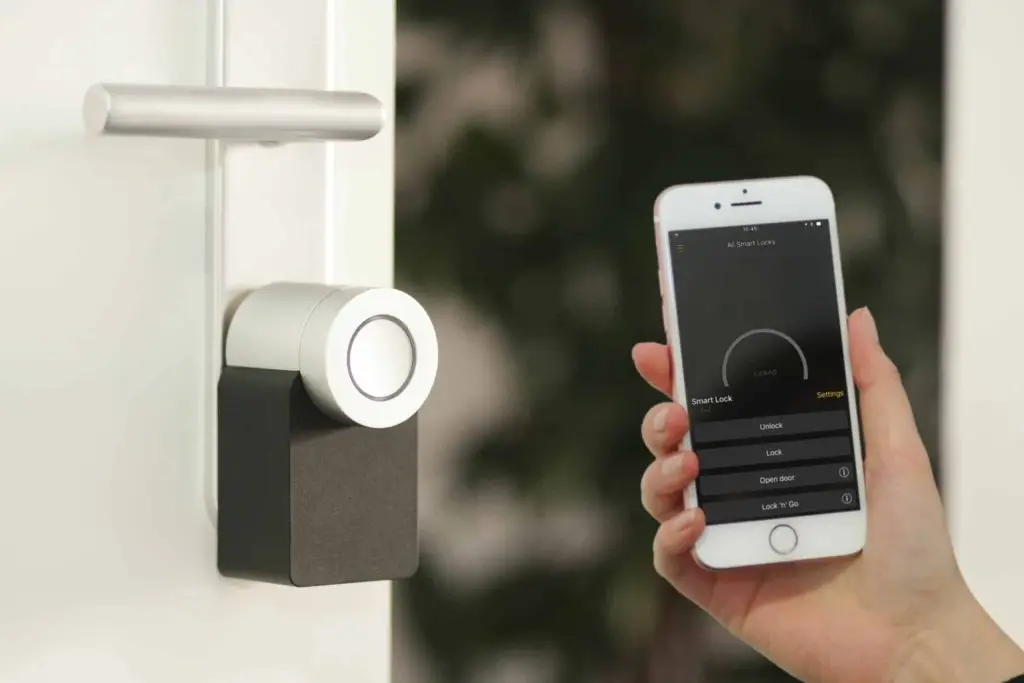
To secure home security cameras, lock down your Wi‑Fi router (WPA2/WPA3), change default logins, require encrypted connections, keep software updated, limit admin access, enable built‑in protections, and secure the phone or tablet you use for control.
Why simple camera installs can still be risky
Smart doorbells and DIY camera kits are everywhere. The global smart home security market is projected to grow by 20.1% by 2026, after an estimated 21.6% jump from 2021 to 2022. Watching a front door or warehouse entry from your phone feels easy—and it is. But that convenience can hide real security gaps.
There are well-publicized cases of cameras getting hijacked, including incidents where strangers spoke through hacked devices reported by The Guardian. And in 2019, Ring reported a breach exposing more than 3,000 users’ credentials. Stories like these can make anyone nervous. The good news: with a few basics, you can set up cameras at home or in a small office around Panama City without inviting trouble.
Secure Home Security Cameras: Lock down your router
Your cameras connect through your Wi‑Fi, so your router is the front door. Use WPA2 security at a minimum; WPA3 is even better. These settings protect the traffic moving over your wireless network.
Set a strong router password of at least 12 characters. Short, simple passwords are easy to crack. In fact, software can break an 8‑character, basic password almost instantly, while a 12‑character password using a mix of upper and lower case, numbers, and symbols could take about 34,000 years to guess.
Change factory usernames and passwords
Default logins are widely known and easy to find. Change the device username and password as soon as you power it up. If you don’t, an attacker could get in within minutes of your camera going online.
Require encrypted connections (SSL/TLS)
Make sure the camera and its app use encrypted connections like SSL/TLS (Secure Sockets Layer/Transport Layer Security). Without encryption, someone could intercept video feeds or commands as they travel across the internet.
Turn on automatic software updates
Updates fix newly discovered security gaps. If your system supports automatic updates, enable them so patches install quickly. Skipping updates leaves the door open to known attacks.
Give people only the access they need
Not everyone needs full control. If several family members or staff use the app, reserve admin rights for one or two trusted people. Set others to view‑only where possible. This reduces the damage if a login is compromised.
Review and enable built‑in security options
Many systems ship with some protections turned off. Walk through the security settings and switch on the features that apply to you. Be careful with generous sharing options—these can make it too easy for the wrong person to see your feeds. If you’re unsure which settings to use, ask your managed IT provider for a quick review.
Protect the phone or tablet you use
Most of us control cameras from a smartphone. If that phone is insecure, your camera setup is insecure. Keep the device updated, and add:
- Mobile anti‑malware
- DNS filtering
- A screen lock (PIN, fingerprint, or face unlock)
- Automatic updates for apps and the operating system
Frequently asked questions
Do I need to avoid cloud‑based cameras?
No. Cloud systems can be safe when set up correctly—use encryption, strong unique passwords, and keep everything updated.
Is WPA3 required?
It’s not required, but it is stronger. If your router supports WPA3, use it. If not, use WPA2 and plan an upgrade when you can.
How long should my passwords be?
Aim for at least 12 characters and mix letters, numbers, and symbols. An 8‑character basic password is trivial to crack, while a strong 12‑character one could take about 34,000 years to guess.
Do these steps help in a small office, too?
Yes. The same practices apply at home and in small business spaces—especially when you view cameras from multiple phones or laptops.
Want a second set of eyes on your setup? Flux Labs helps homes and small offices around Bay County harden camera systems. Have questions? Get in touch.