Looking to customize your desktop layout? Start with wallpaper and themes, tidy icons into folders, add helpful widgets, create custom icons, use multiple desktops, set keyboard shortcuts, automate repeat tasks, fine-tune the taskbar or dock, and explore trusted tools—quick wins for offices around Panama City.
You can adjust the look and feel of your computer so it suits how you work. A few small changes can make it easier to find what you need and reduce clutter. Whether you use Windows, macOS, or Linux, these ideas can help your day run smoother.
How to Customize Your Desktop Layout
Below are ten practical tweaks you can make today. Pick one or two to start, then build from there.
1) Pick a Wallpaper That Fits Your Mood
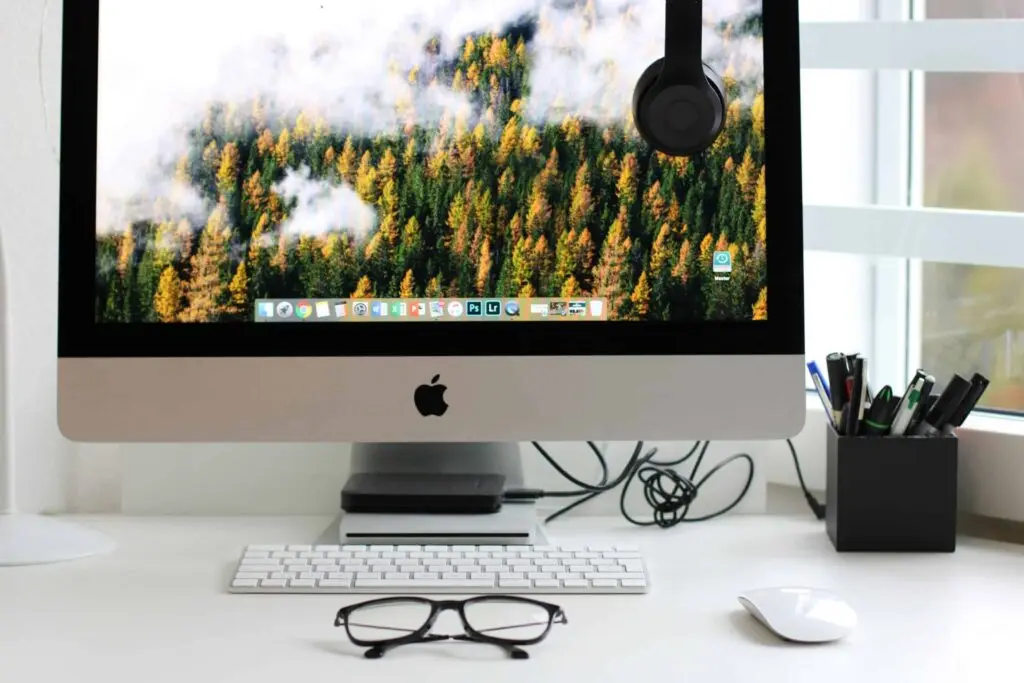
Swapping your desktop background is the fastest way to refresh your screen. A calm image can help you focus, while a bold photo can spark creativity. Try a few options and see what keeps you on task.
On Windows, right‑click the desktop and choose Personalize to select a picture from your files or one provided by Windows. On a Mac, go to System Preferences > Desktop & Screen Saver to choose or share a new image. Most systems change wallpapers from within their main settings.
2) Try a Theme for a Full Makeover
Themes change colors, fonts, and the look of windows and menus in one go. On Windows, you can install themes from Microsoft (see Microsoft’s guidance) to quickly match your style or workplace. macOS also supports themed changes, though some options may require extra software. Linux typically offers the most control through open‑source tools.
Using a theme creates a consistent look across apps and windows, so your desktop feels intentional, not pieced together.
3) Clean Up and Group Your Icons
A tidy desktop makes it easier to find what you use most. Create folders for projects or file types, then group items so the layout makes sense to you. Labels or color tags can also help you spot things faster.
Pin your everyday apps to the Windows taskbar or the macOS Dock for one‑click access. This keeps your workspace clear while bringing your key tools to the front.
4) Keep Key Info Handy with Widgets
Widgets (and gadgets) put quick information—like weather, headlines, or system stats—right on your screen. They save clicks and help you stay updated without opening extra tabs. In Windows, see how widgets work in Microsoft’s article on staying up to date with widgets. Widgets are especially helpful for tracking system resources or keeping an eye on current events.
Popular tools include Rainmeter on Windows, GeekTool on macOS, and Conky on Linux. Each lets you place customizable panels anywhere on your screen.
5) Swap In Your Own Icons
Custom icons give your folders and apps a consistent, polished look. Design your own in a graphics app (Adobe Photoshop or the free GIMP work well), or download a matching set you like.
To change an icon, right‑click the item and open Properties in Windows, or Get Info on a Mac. Then replace the preview with your custom image. Small detail, big impact.
6) Separate Work with Multiple Desktops
Use separate desktops to keep different tasks apart. One desktop for email and calendars, another for project tools, and a third for meetings—less distraction, more focus.
In Windows, create and switch using Task View. On macOS, use Spaces to set up different work areas. Many Linux users manage multiple desktops through environments like GNOME or KDE.
7) Create Keyboard Shortcuts You’ll Use
Shortcuts speed up everyday actions and reduce clicks. Assign keys for things you do often—launching apps, snapping windows, or starting a screen capture.
In Windows, open Settings > Ease of Access > Keyboard to set up custom shortcuts. On macOS, go to the Keyboard preferences in System Preferences to create your own combinations. A few minutes of setup can save hours over time.
8) Automate the Boring Stuff
Automation tools handle repeat tasks so you don’t have to. AutoHotkey (Windows) and Automator (macOS) can rename batches of files, launch groups of apps, or stitch together multi‑step workflows.
Start by listing the chores you do again and again. Then build a simple script to take them off your plate. Even small automations free up time for deeper work.
9) Tune Your Taskbar or Dock
Your taskbar or dock is prime real estate. Arrange icons, add the tools you use most, and adjust how it looks so it’s easy to read at a glance. A well‑organized bar makes your desktop feel intuitive.
On Windows, right‑click the taskbar to change its appearance and pin new apps. On macOS, pin apps to the Dock, and adjust its size and position until it fits your workflow.
10) Go Deeper with Third‑Party Tools
Ready for more? Third‑party utilities bring extra flexibility. Rainmeter (Windows) and GeekTool (macOS) let you add skins and widgets that show anything from system health to inspirational quotes—all arranged your way.
Browse community forums and galleries for examples and step‑by‑step guides. You’ll find plenty of inspiration and safe downloads to try unique, functional layouts.
Give It a Go
Personalizing your desktop is both useful and fun. Whether your goal is to work faster, express your style, or make your computer feel more “you,” these ideas will help you build a setup that fits how you work.
If you’d like help tailoring desktops for your team’s computers around Bay County—or want guidance rolling these changes out—please get in touch. We’re glad to help.
—