Wondering how much device storage do I need? Most offices do fine with 128–256GB on everyday devices, but heavy photo/video work and big apps can push you to 512GB or 1TB+. Use our quick breakdown below to match storage to how you work and avoid slowdowns.
Device Storage, In Plain Terms
Device storage is the built-in space on your phone, tablet, or computer where apps, photos, videos, and documents live. When it’s full, you can’t save new files and the device may feel sluggish. At that point you either clear space, add external storage, pay for cloud space, or move to a device with more capacity.
Typical Storage by Device
- Smartphones: Common starting point is 64GB, and premium models can reach 1TB. iPhones don’t include SD card slots. Many Android phones offer them.
- Tablets: Often 32GB to 256GB. Some models accept memory cards if you need extra room.
- Laptops: Usually 128GB to 1TB. Many can be upgraded later.
- Desktops: 1TB to 4TB is typical, and adding more is straightforward.
How Much Device Storage Do I Need?
It’s easy to overbuy or fall short on capacity—your answer depends on how you use the device (good overview here). Use these quick profiles:
- Light use (about 64GB): Email, web, social media, and a few photos.
- Typical office use (128GB to 256GB): Many apps, growing photo libraries, and some videos.
- Heavy use (512GB or more): Video editing, large game sets, or very big photo collections.
- Professional workloads (1TB+): 4K video projects, large datasets, and professional photo editing.
What Fills Up Space Fast?
- Videos: A one-hour 4K recording can take about 7GB or more.
- Photos: Smaller than video but they stack up quickly—1,000 high-quality shots may use around 5GB.
- Games: Many modern titles exceed 100GB each.
- Apps: Most are small, but creative and editing tools can be very large.
Stay Ahead With Better Storage Habits
- Use cloud storage: Services like Google Drive and iCloud move files off the device. According to one report, 65.2% of people treat the cloud as their main storage location.
- Remove apps you don’t use: Old apps eat space and can drag on performance.
- Clear app cache: Temporary files build up; clearing them frees space.
- Stream instead of download: Music and video streaming saves a lot of room.
Running Low? Ways to Add Space
You can expand capacity without replacing gear in many cases:
- Add removable storage: SD cards (where supported) or USB drives give quick extra space.
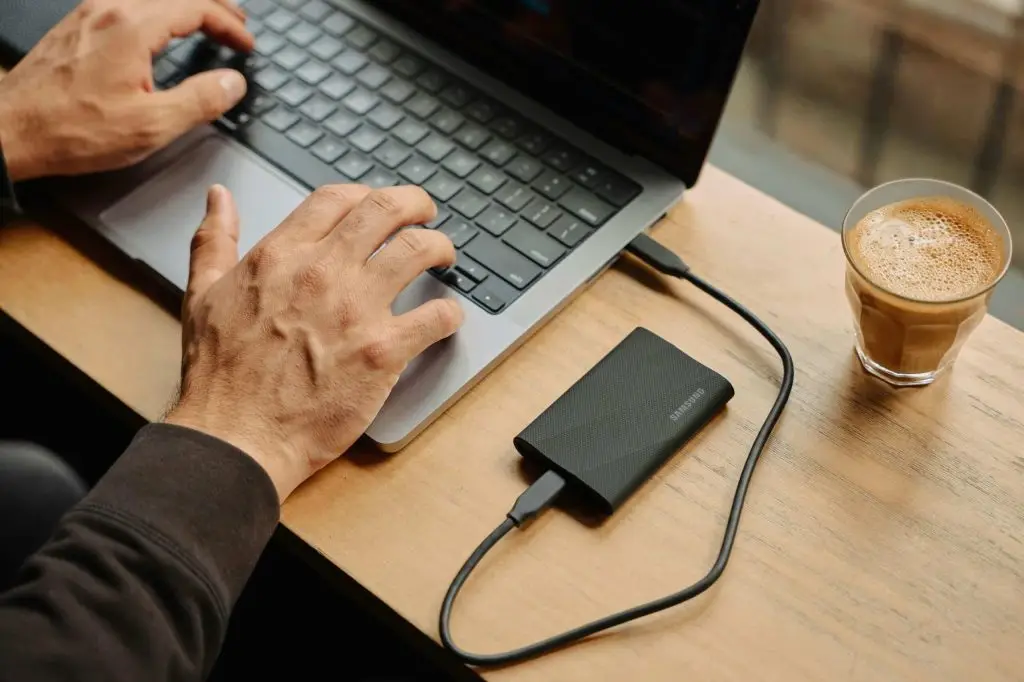
- Plug in an external drive: Great for archives, media, and backups.
- Lean on the cloud: Move files to services like Google Drive or Dropbox to free local space.
- Upgrade the device: When possible, replace the internal drive or choose a model with more built-in storage.
Choosing Storage for Your Next Purchase
Think about how many photos and videos you create, how many apps or games you install, and whether you handle big files. For most office setups around Panama City, picking a little more capacity than you need today gives room to grow. It’s safer to have extra headroom than to run out a few months in.
Sources and further reading
- Apple: Where to find your device storage
- Gear Patrol: How much laptop storage do you need?
- Connectbit: Cloud storage statistics
Need help matching storage to your team’s work? We help offices across Bay County choose devices and cloud options that fit. Get in touch.
—