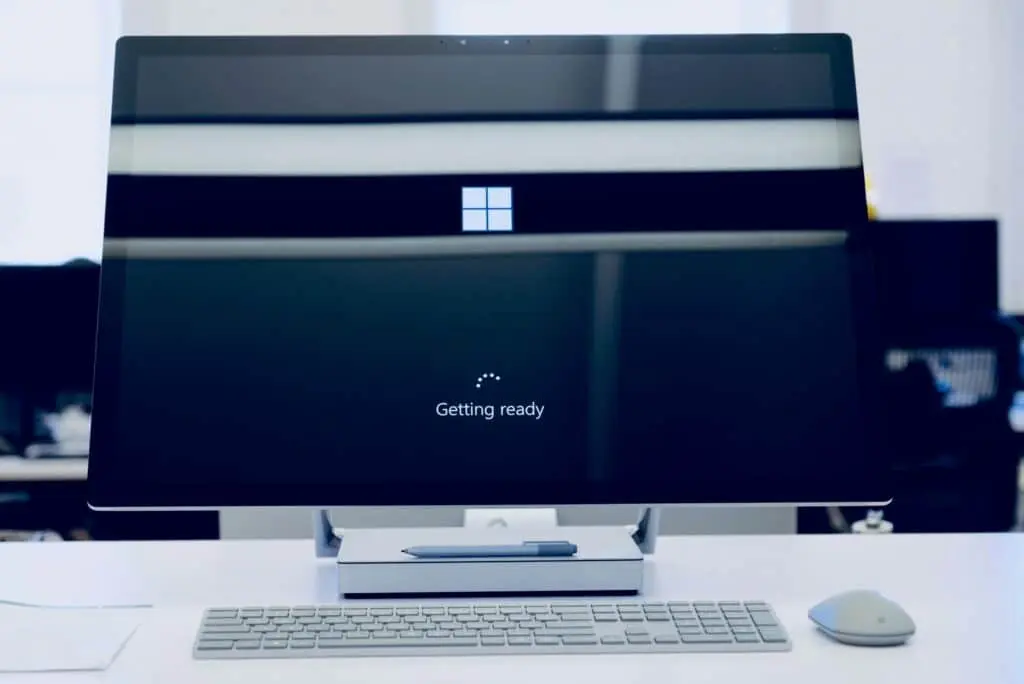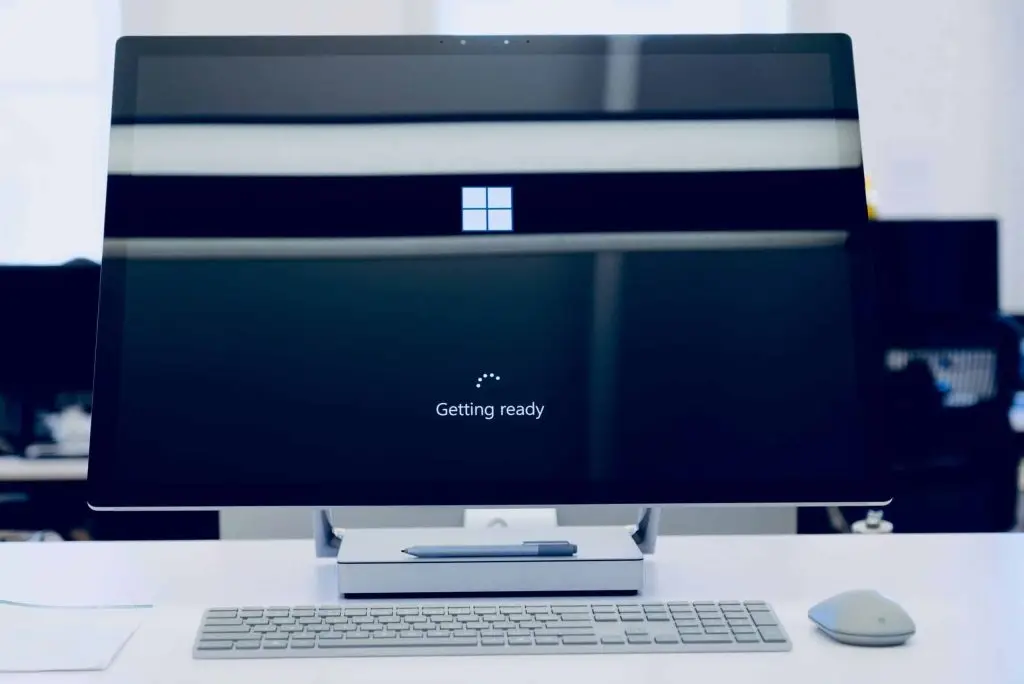
Windows 10 end of support is October 14, 2025 (Microsoft). After that date, no security fixes or patches will arrive. For Bay County businesses, the smart move is to plan your Windows 11 upgrade now so your computers stay secure, fast, and ready for work.
Windows 10 has been a reliable workhorse, but its lifecycle is winding down. Upgrading to Windows 11 isn’t just about a new look. It’s about protecting your data, keeping staff productive, and avoiding last‑minute headaches—especially if you manage a fleet of machines across departments.
Windows 10 End of Support: Why Act Now
When support ends on October 14, 2025, Windows 10 devices will stop receiving critical fixes (source). That opens the door to new threats with no patches on the way. Moving to Windows 11 puts you back on a supported, secure platform.
You’ll also notice a speed and efficiency bump. Windows 11 is tuned to make better use of modern processors and storage. Everyday tasks feel snappier, boot times drop, and apps run more smoothly.
And there are helpful tools built in. A refreshed Start and Taskbar, Snap Layouts and Snap Groups for organizing windows, and Virtual Desktops to separate work from personal tasks—all designed to save clicks and reduce clutter.
Can Your PCs Run Windows 11?
Not every computer qualifies. Microsoft lists specific requirements for Windows 11 (details here):
- 64‑bit processor, 1 GHz or faster, with 2 or more cores
- 4 GB of memory or more
- At least 64 GB of storage
- UEFI firmware with Secure Boot
- TPM 2.0 (Trusted Platform Module)
- Graphics that support DirectX 12 with a WDDM 2.0 driver
Plenty of older machines won’t meet that bar. If some of your PCs fall short, it may be time to refresh hardware rather than force an unsupported setup.
Make Your Upgrade Count
Modern Hardware Pays Off
New systems bring faster processors, more RAM, and speedy solid‑state storage. Staff will feel the difference in day‑to‑day work—less waiting, more doing.
AI‑Enabled PCs with Copilot
Consider AI‑ready devices with Copilot. These PCs use built‑in intelligence to learn routines, anticipate what you need next, and streamline tasks, making the experience feel more natural and efficient.
Use Less Power
Today’s machines are designed with energy efficiency in mind. You get strong performance while using less electricity—good for the environment and the utility bill.
Advantages You’ll See in Windows 11
Cleaner, Easier Interface
A simplified, centered Start and a customizable Taskbar put your everyday apps front and center. Navigation feels straightforward, even for non‑tech users.
Better Multitasking Tools
Snap Layouts and Snap Groups help arrange windows in a click, and switching between tasks is simpler. Virtual Desktops let you keep work and personal spaces separate to cut down on distractions.
Teams Built Into the Taskbar
Microsoft Teams is integrated, so you can start a chat or video call right from the Taskbar—handy for remote or hybrid teams.
Virtual Desktops, Now More Flexible
Give each desktop a different background and organize apps by role or project. It’s an easy way to keep focus without juggling overlapping windows.
The Cost of Waiting
Higher Security Risk
As the end date approaches, attackers target systems that no longer receive updates. Staying on Windows 10 after support ends increases exposure to new threats (source).
App Compatibility Slips
Over time, more software vendors stop supporting outdated operating systems. That can mean skipped features, bugs, or apps that won’t install—hurting productivity.
Upgrade on Your Schedule
Starting now lets you roll out upgrades by department and test along the way. That reduces disruption and keeps your team moving.
Avoid the Last‑Minute Rush
The closer we get to the deadline, the busier it will be. Upgrading early helps you sidestep supply delays and scheduling bottlenecks.
How To Move to Windows 11
Check Each PC
Run Microsoft’s PC Health Check to confirm compatibility (download and steps).
Back Up First
Save important files to cloud storage or an external drive before you start.
Follow Microsoft’s Installer
Use Microsoft’s upgrade process to install Windows 11. If a device doesn’t meet requirements, plan to replace it with compatible hardware.
Get Expert Help
If you’d like a hand, we can coordinate planning, testing, and rollout for offices around Panama City and the rest of Bay County so the transition is smooth and predictable.
Ready to map out your Windows 11 upgrade and migration? We’re here to help—get in touch.
—