
Microsoft Teams virtual appointments let you book and run customer meetings in one place—easy links for guests, branded waiting rooms, email or text reminders, and optional analytics—without making people sign up for Teams.
What Microsoft Teams Virtual Appointments Do
If your team handles product demos, consultations, or telehealth, this new meeting type in Teams can simplify the whole process. Virtual Appointments brings scheduling and video together so you can plan, manage, and host customer-facing (B2C) meetings from one screen. Guests join from a link and don’t need a Teams account to participate.
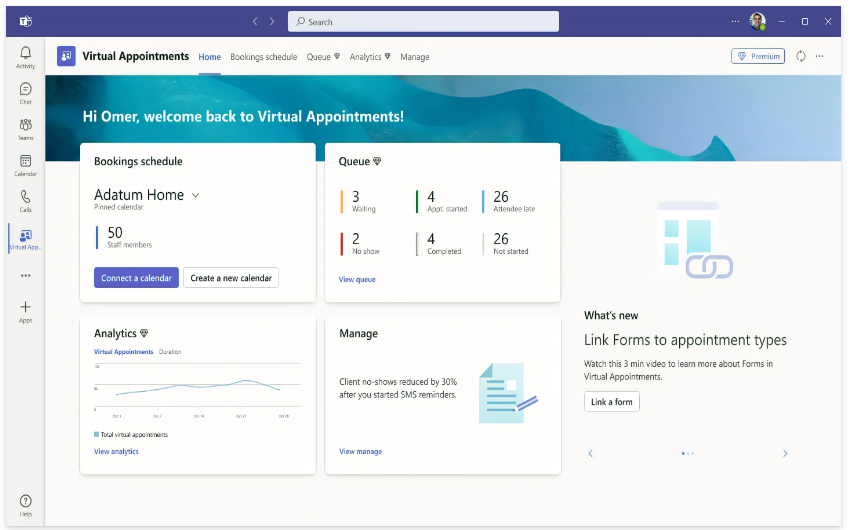
Teams ties directly into Microsoft Bookings, so calendars, invites, and meeting details all connect smoothly. Some capabilities are included with standard Microsoft 365 plans, while others require a premium option.
Key Features You Can Use
All your appointments in one view
See upcoming meetings at a glance. Reschedule or cancel without hopping between tools.
Personalized confirmations and reminders
Send branded confirmations and reminders by email or SMS. You can automate these so every client gets a timely note without manual effort.
A waiting room you can brand
Customize the lobby with your logo and colors to give a consistent look. You can also message attendees in the lobby—handy if the prior meeting runs a few minutes over.
Easy follow-ups after the call
Share promised resources and next steps right from Teams. Keeping these details together makes the conversation history easy to track.
Organization-wide analytics (premium)
With the premium reporting, you can review how customer appointments are performing across teams and departments, gaining insights into your B2C meetings.
How to Set Up Virtual Appointments
Getting started takes a few admin steps in Teams. The person configuring this should have Bookings admin permissions.
Create a calendar
Open the Virtual Appointments app in Teams and choose “Create a calendar” on the Home tab. Larger companies may prefer separate calendars for each department.
Add staff
Add your team members (up to 100) and assign roles. You’ll be able to view availability in both Teams and Outlook, and calendars will sync across Microsoft 365.
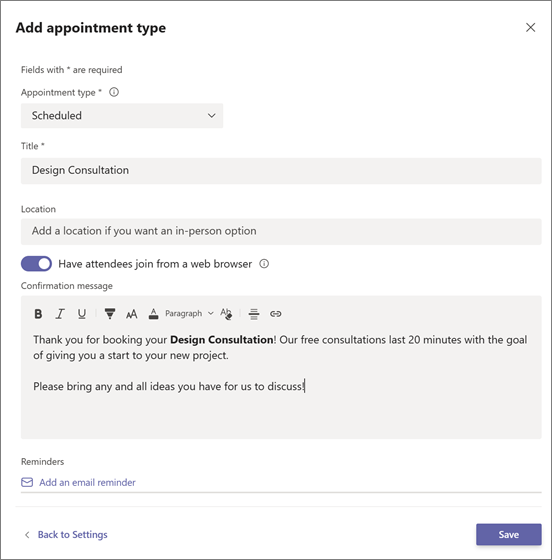
Set your appointment types
Define what you offer using two options:
- Scheduled: You pick the date and time, which appears in the confirmation.
- On-demand (Teams Premium): Customers choose a slot from your booking calendar.
Turn on SMS notifications (optional)
If your plan supports text messaging, enable it to send confirmations and reminders by SMS. At this time, texts deliver only to mobile numbers based in the United States, Canada, or the United Kingdom.
Attach forms (optional)
Need intake details before the call? You can link up to four cloud forms created in Microsoft Forms.
Publish a booking page for self-service
Want customers to pick their own time? Go to the Manage tab in Virtual Appointments, select “Booking page,” and switch on “Publish booking page.”
Make Microsoft 365 Work Harder for You
Many businesses only use a fraction of what Microsoft 365 can do. That can slow teams down and lead to extra apps you may not need. Virtual Appointments is a good example of built-in value your staff can use right away—especially for offices around Panama City.
If you’d like help setting up Microsoft Teams virtual appointments or streamlining Microsoft 365 for your Bay County business, get in touch.