Yes—put your smart home gadgets on a different wireless network. Using separate Wi‑Fi for IoT devices shields your work computers and phones from risk, cutting off the easy path attackers use, especially in home offices around Panama City.
The Smart Gear At Home Keeps Growing
Homes today are packed with internet‑connected tech. On average, a U.S. household now has 10.37 devices online, and many of those are not PCs or phones. Internet of Things (IoT) devices include things like streaming sticks, connected fridges, baby monitors, and voice assistants.
Remote Work Raised the Stakes
Since the pandemic, lots of people work from home some or all of the time. That means business data and home gadgets often share the same Wi‑Fi. More eyes are now on the security of those smart devices because they sit close to company files and email.
Consider these alarming statistics about IoT risk:
- IoT cyberattacks jumped 135% in the first half of 2021 compared to the prior year.
- It’s estimated that more than 25% of attacks against businesses involve IoT devices.
How Hackers Leap From Smart Devices To Your Laptop
Criminals often start with the weakest target on a network. A smart doorbell or connected fridge might not hold valuable data, but once compromised it can help an attacker map the rest of your network. From there, they try to reach your computer or phone, where personal details and company information live.
Why Many Smart Devices Are Easier To Break Into
- They typically don’t include built‑in antivirus or anti‑malware tools.
- Owners frequently skip or delay firmware updates.
- Simple interfaces can hide signs that something is wrong.
- Default usernames and passwords are often left in place.
- Sharing features on IoT gear can expose them to misuse.
Set Up Separate Wi‑Fi for IoT Devices
Most modern routers let you create a second wireless network, commonly called a guest network. It appears as its own Wi‑Fi name so devices can connect to it separately.
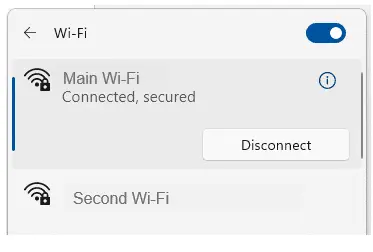
Moving all smart home gear onto that guest network creates a barrier. If someone breaks into a gadget on the guest side, they can’t see what’s on your primary network—like your computer or smartphone—because they’re isolated from each other. That extra layer helps whether you’re working remotely or just doing household budgeting and online banking.
Here’s a straightforward way to split things up. (If you’d rather not tackle this yourself, we can handle it for you.)
- Step 1: Sign in to your router’s admin page.
- Step 2: Find the setting to enable a guest network. The menu name varies by router model, so check its online help if needed.
- Step 3: Create the guest network and choose a strong password.
- Step 4: Change the password on your existing main network so smart devices won’t reconnect to it automatically.
- Step 5: Connect every IoT device in the house to the new guest network.
- Step 6: Rejoin your sensitive devices—computers and smartphones—to the primary network using the new password.
When you bring new equipment home, add it to the correct network right away to keep this protection in place.
One more tip: avoid Wi‑Fi names that give away details—don’t use labels like “IoT network,” your name, address, or your router’s model. Keep network names generic so you don’t hand attackers useful clues.
Frequently asked questions
What is a guest Wi‑Fi network?
It’s a second Wi‑Fi name (network) created by your router that’s separated from your main network. Devices on the guest side can access the internet without seeing your primary devices.
Which devices go on which network?
Put smart home gear—cameras, speakers, plugs, TVs, appliances—on the guest network. Keep computers and smartphones on the primary network.
Do I need a new router to do this?
Probably not. Most current routers include a guest network feature. Check your model’s support page for steps.
Is this still worth it if I don’t work from home?
Yes. Even if it’s just personal tasks like banking, keeping smart gadgets apart from your main devices reduces risk.
Need Help Hardening Your Home Setup?
Attackers know home networks can hold business and personal data. Don’t leave an easy path open. If you want help setting this up for your household or home office in Bay County, get in touch.