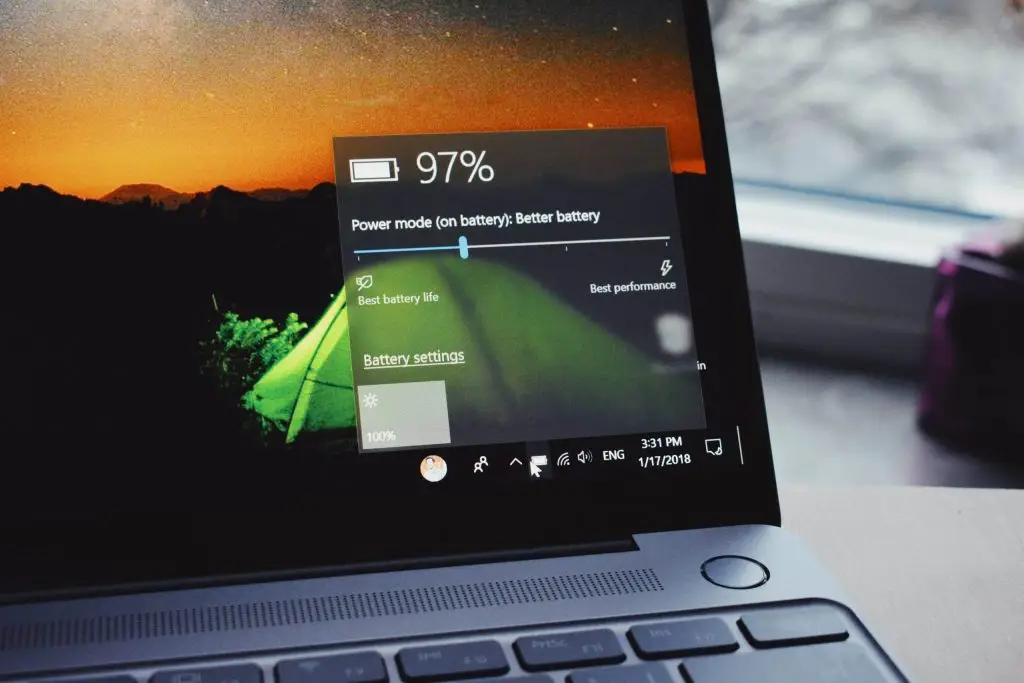
Want to extend laptop battery life? Dim the screen, adjust Windows power and sleep settings, switch on battery saver early, trim background apps and browser tabs, use your maker’s calibration tool, and keep the laptop out of heat and cold—simple fixes that help you stay unplugged longer around Panama City.
Laptops are great because you can work from the conference room, a client site, or your back porch—no outlet required. But over time, your battery won’t hold as much charge as it did on day one. As battery health declines, your unplugged time shrinks. You can check battery health on Windows (see this walkthrough from Tom’s Guide: how to check battery health in Windows 10), and then use the tips below to stretch each charge.
Simple Ways to Extend Laptop Battery Life
Small changes add up. Start with these quick wins.
Turn Down the Screen Brightness
Your display is a major power draw. Lowering brightness can buy you a lot of extra minutes. Use the brightness keys on your keyboard or adjust it in your display settings until it’s comfortable but not overly bright.
Tune Windows Power and Sleep Settings
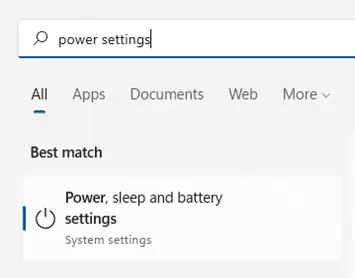
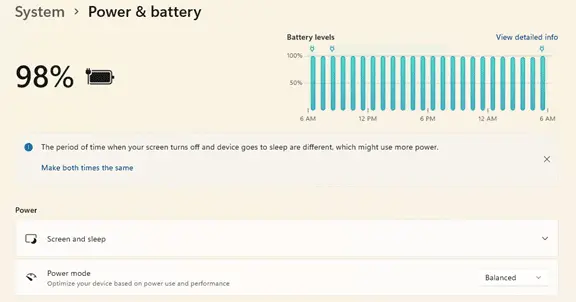
Windows includes built-in options to reduce power use. In the taskbar search, type "power settings" to open Power & battery. Look for suggestions at the top—Windows often recommends steps like matching the time your screen turns off with the time the PC goes to sleep.
Review Screen and sleep times, then pick a Power mode that favors efficiency when you’re away from a charger. Shorter timeouts and an efficiency-focused mode help extend each charge.
Switch On Battery Saver Before You’re Low
Don’t wait until you’re at 10%. You can manually turn on battery-saver (sometimes called power-saver or Battery saver mode) as soon as you know you’ll be unplugged for a while. It reduces background activity and dims the display to make your charge last.
Run the Manufacturer’s Battery Calibration
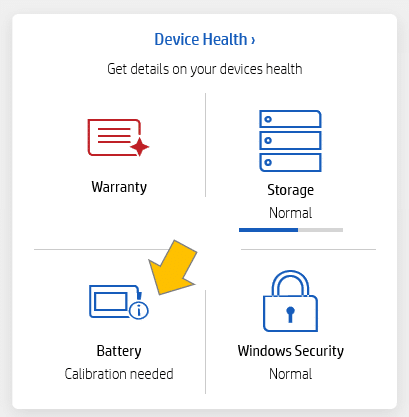
Most laptop makers include a maintenance app that can test and calibrate the battery. If your run time dropped sharply compared to when the laptop was new, calibration can sometimes correct reporting and improve consistency.
Open your manufacturer’s utility (often pinned on the taskbar or in the Start menu) and follow any prompts for battery care or calibration.
Trim Background Apps and Startup Items
Extra processes waste power. Open Task Manager to see what’s running. Close apps you don’t need right now—especially updaters, cloud sync tools, or anything active in the background. Also review startup apps and disable those you rarely use.
Try Microsoft Edge’s Power-Saving Features
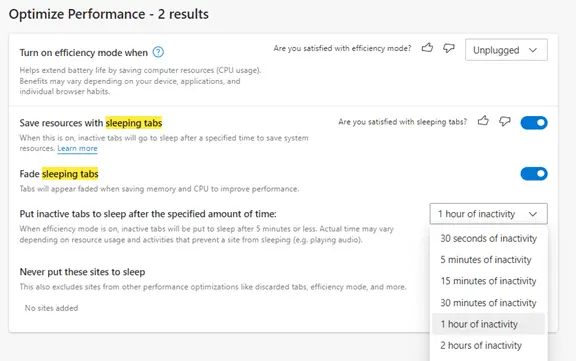
Browsers can drain a battery fast, especially with many tabs open. Microsoft Edge, built on Chromium like Chrome, offers helpful efficiency settings. Search for “sleeping tabs” in Edge settings and consider:
- Turning on Efficiency mode (pick the level that fits your workflow)
- Enabling Sleeping Tabs and fading tabs when they snooze
- Choosing how long a tab should be inactive before it goes to sleep
A Quick Tune-Up Can Help
Old software, too many startup items, and stray background tasks can make a laptop feel sluggish and chew through battery. A professional tune-up often clears out what you don’t need and restores smoother performance, which can also help your battery last longer between charges.
Protect the Battery from Heat and Cold
Extreme temperatures are hard on batteries. Avoid leaving your laptop in a hot car or in freezing conditions. Even mild weather can heat up a parked vehicle quickly in the sun, so bring the laptop with you when possible.
Need a Tune-Up or Battery Replacement?
If your laptop still won’t last as long as it should, we can help with a system tune-up or a battery replacement. For fast, local support around Bay County, get in touch.